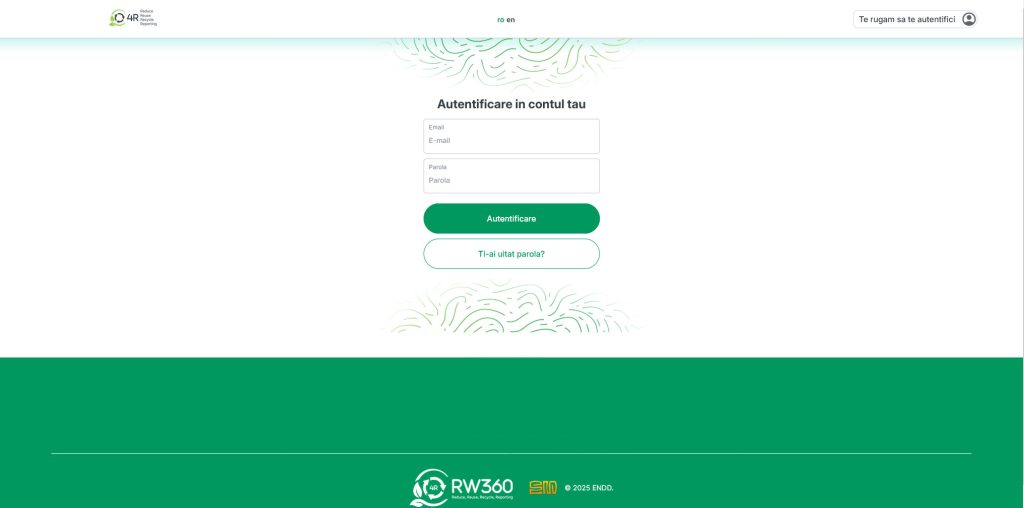
1. Log in to your account
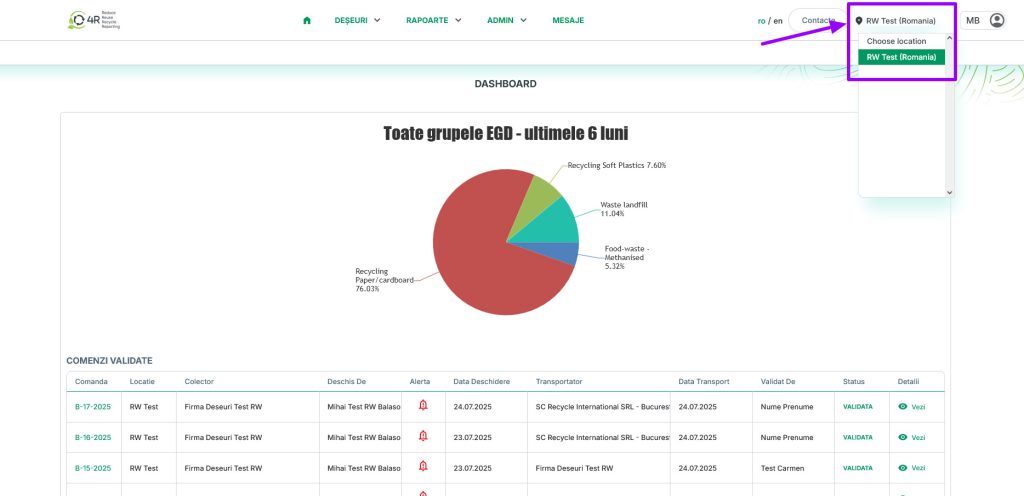
2. Choose the location whose order you want to view
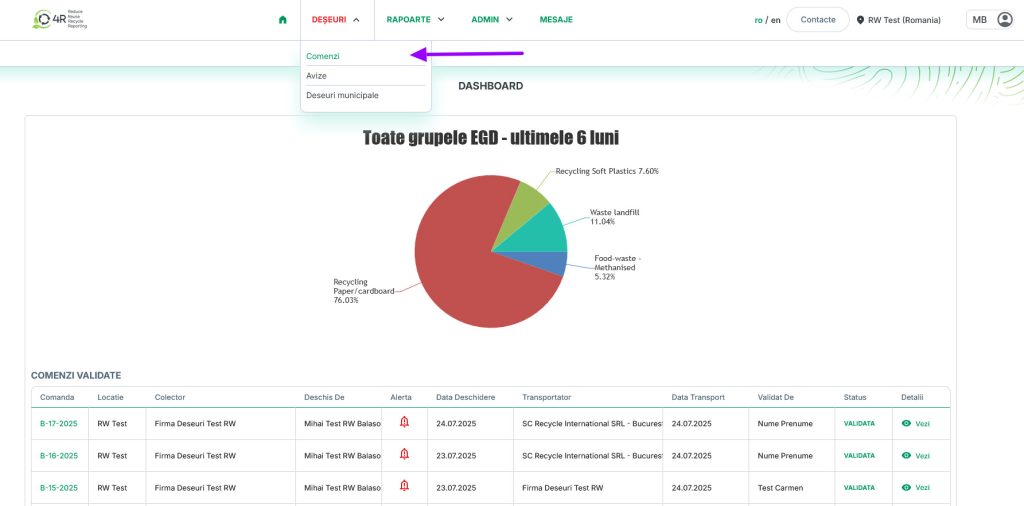
3. Click Waste in the main menu
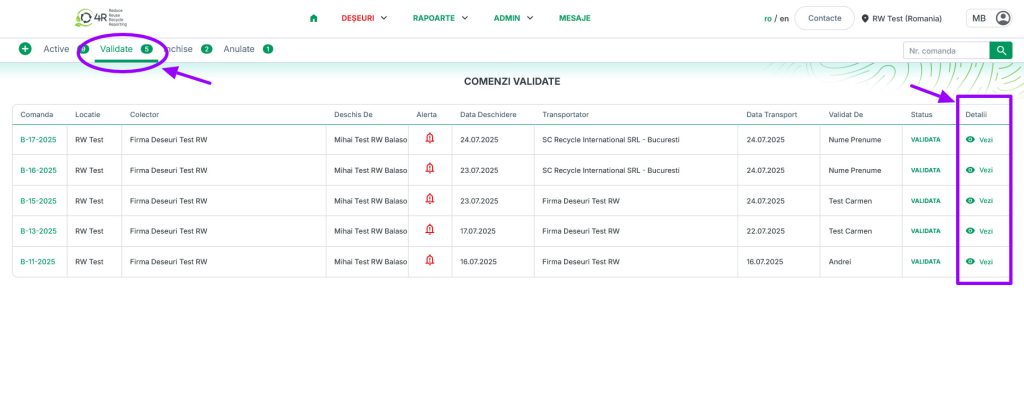
4. Go to Orders and to the Validated tab (only the orders validated by the Partner or the Collector are shown)
5. Click View in the table (last column)
6. Click “Convert to dispatch note” (a pop-up window opens with 2 buttons: Convert to dispatch note or Close order)
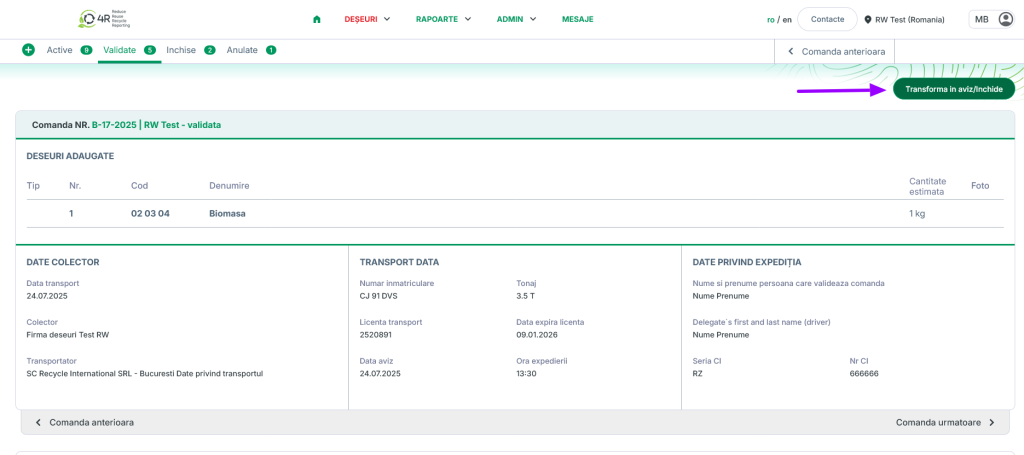
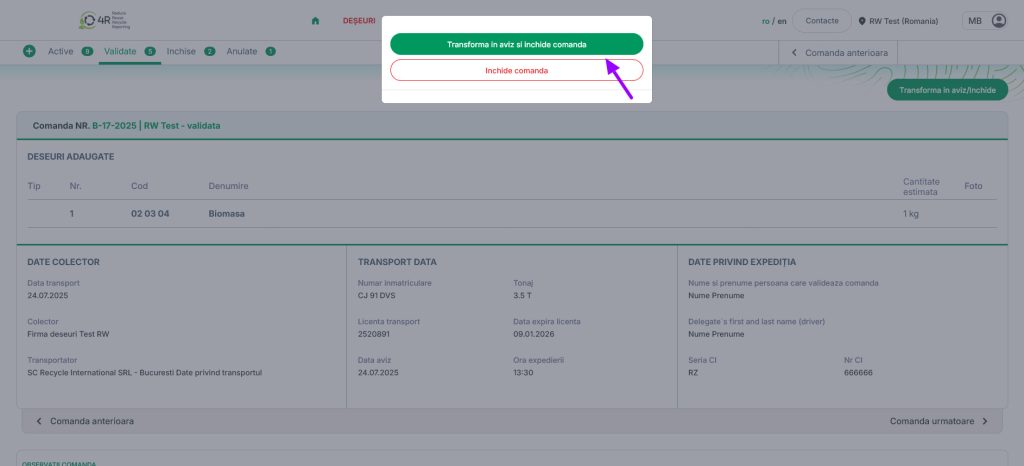
7. If you clicked ‘Convert to dispatch note’, this will automatically open the new dispatch note window
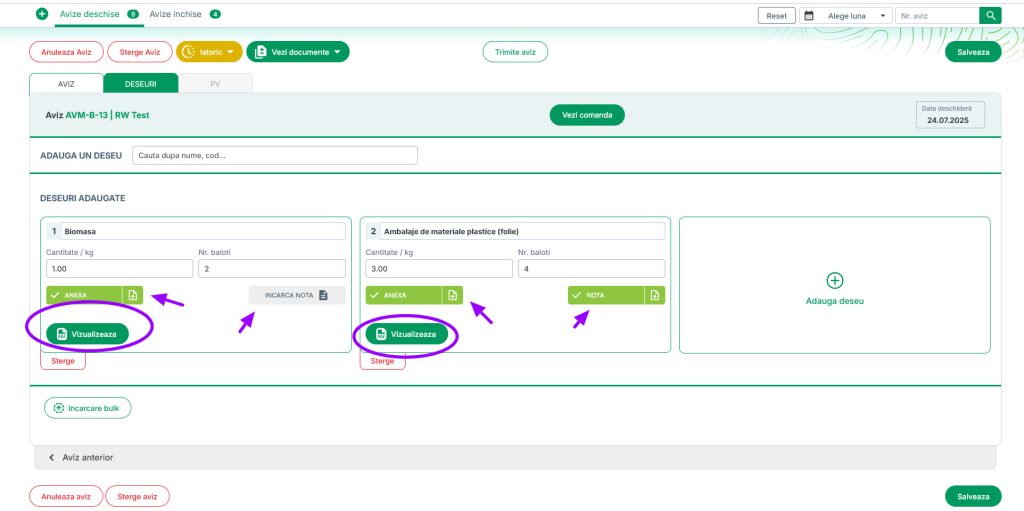
Please note! Check that all the data has been filled in correctly and that all the documents have been uploaded (Annex, Note).
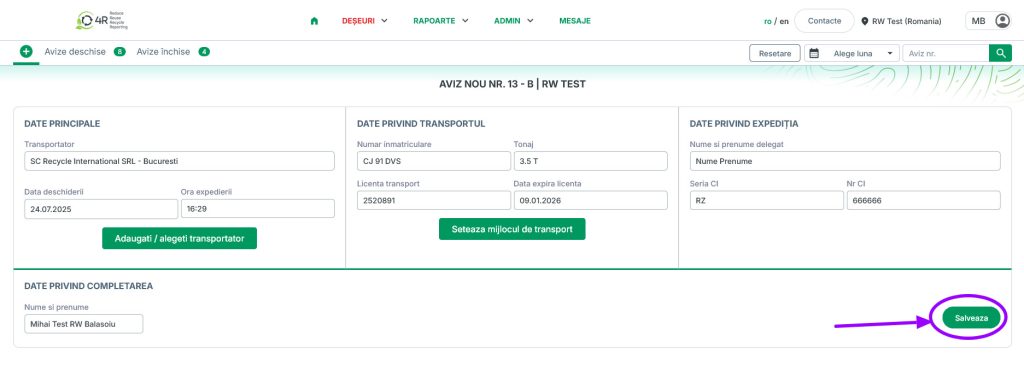
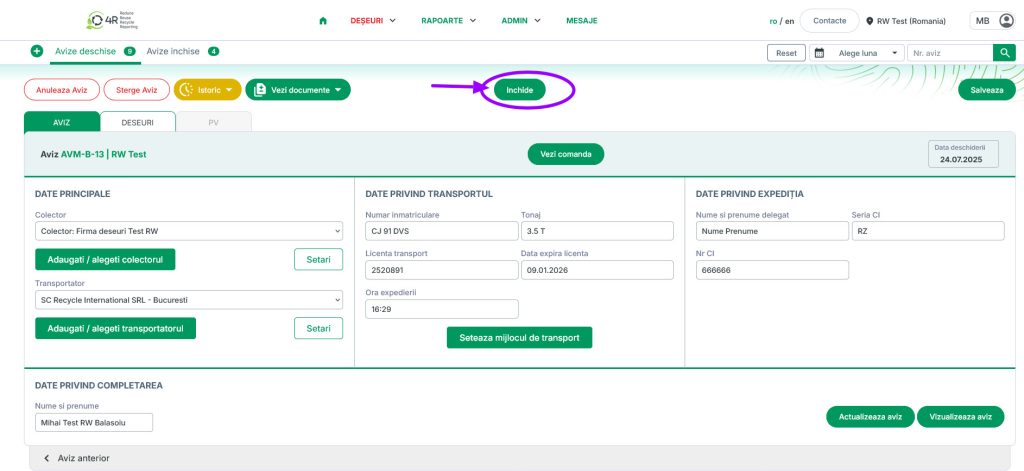
8. The New dispatch note window opens with the status Not validated; click the name of the dispatch note (e.g. Dispatch note B-13) to check whether the data has been entered correctly (check Main details, Transport details and Shipment details).
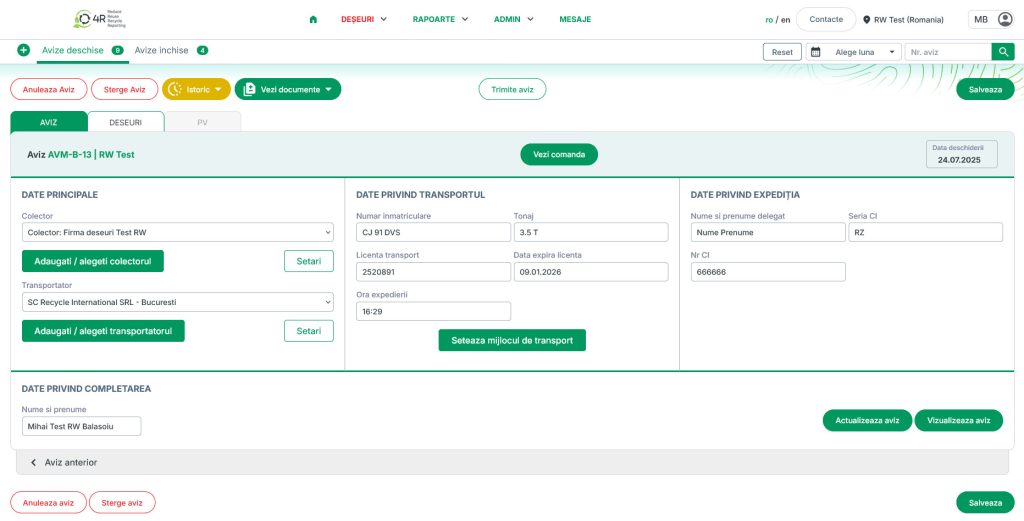
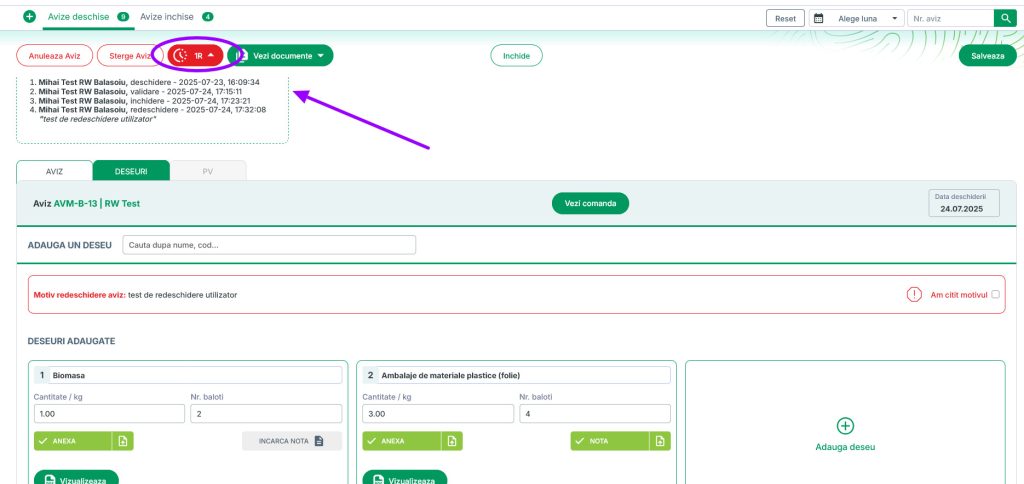
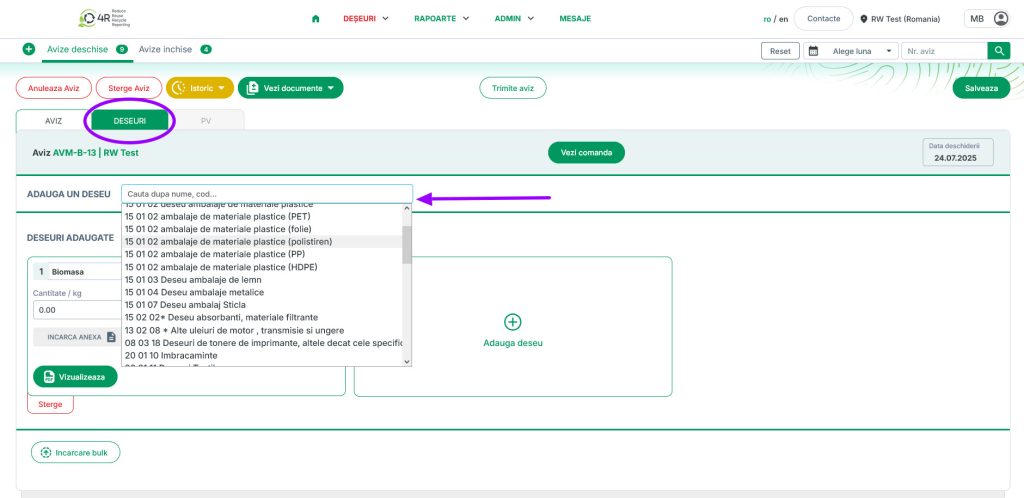
8.1 In the Waste tab, fill in the correct data (waste type and quantity), upload the Annex by clicking the button below the quantity (the Annex button turns green) and click Save

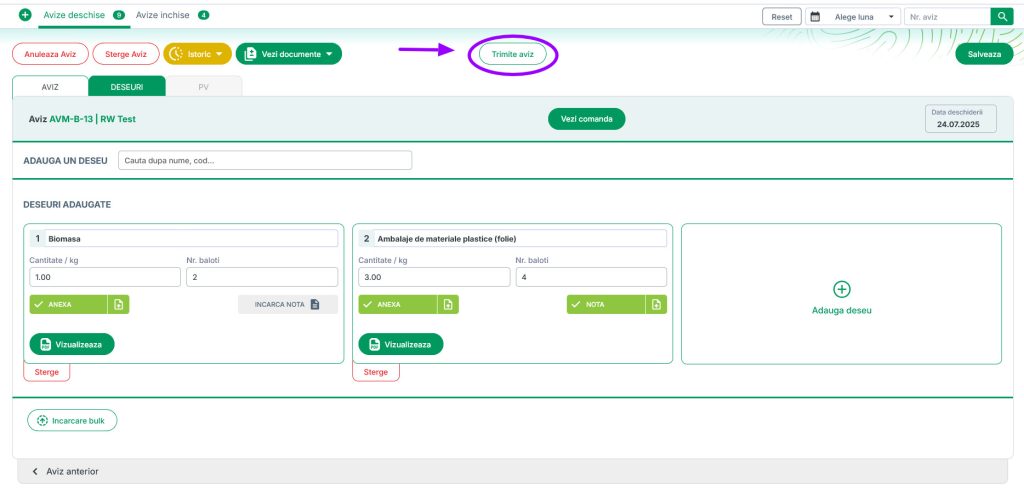
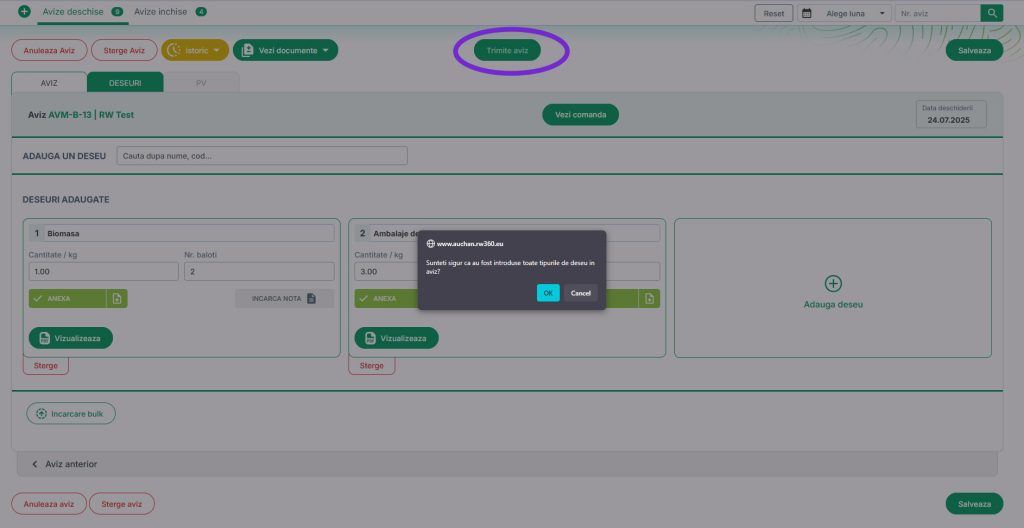
8.2 Click Send dispatch note and a pop-up box will appear with the text: Are you sure all the waste types have been entered in the dispatch note? Click OK
8.3 If all the data is correct and every step has been checked, close the dispatch note
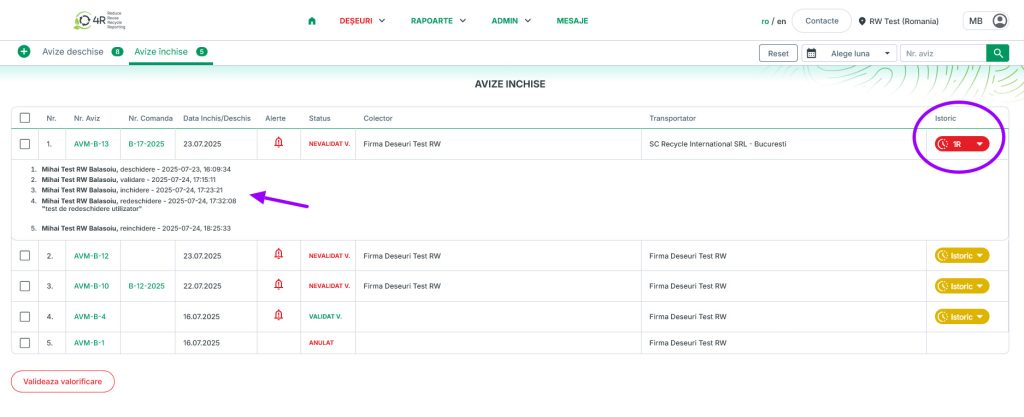
9. Click Close; the dispatch note will then appear under the Closed dispatch notes tab
10. You can reopen the dispatch note if the data entered is not correct/complete; a pop-up window appears where you have to state the reason for reopening it
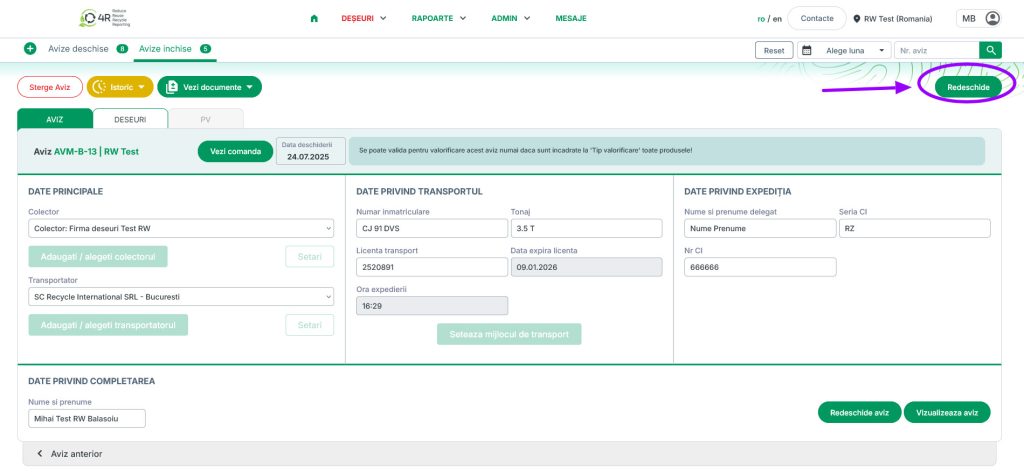
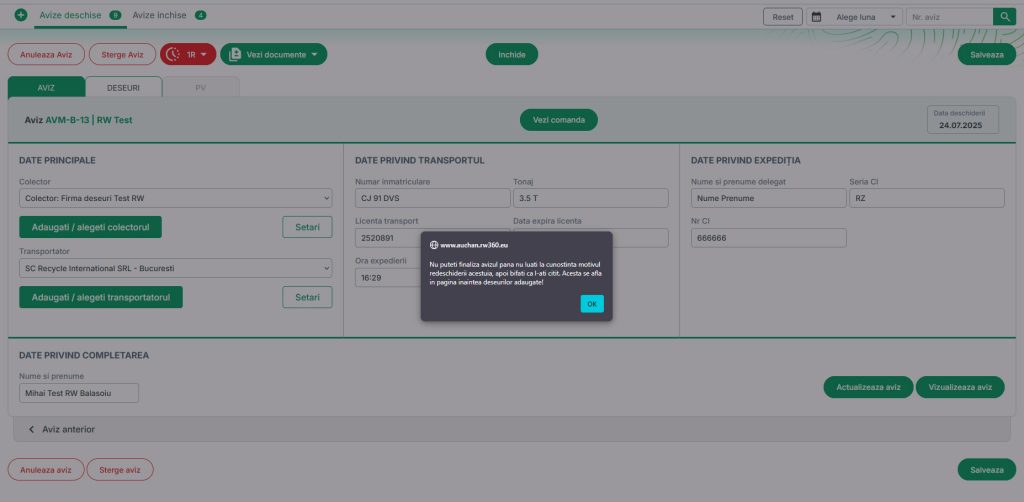
11. Correct the data, click Update and be sure to tick the box – I have read the reason

12. Click Close
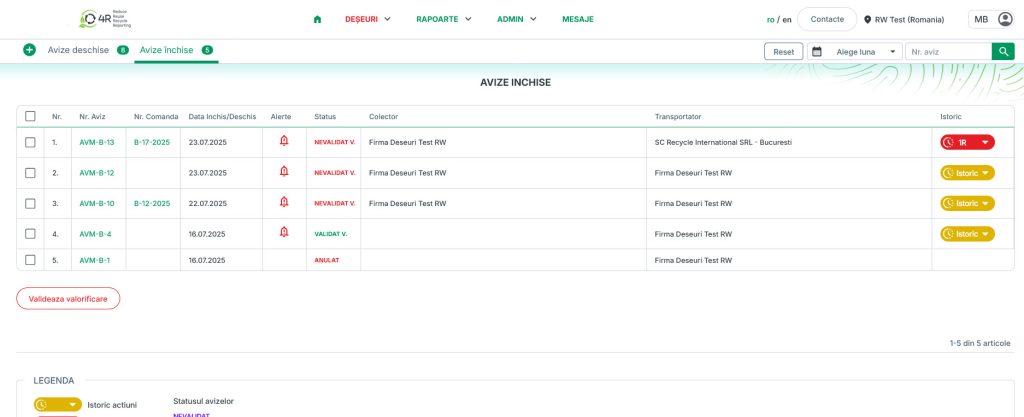
INFO: In the History column next to it, a red 1R button appears (this dispatch note has had one revision)
If you click the arrow on the button, you can see a history of the people who reopened it and the reasons why