
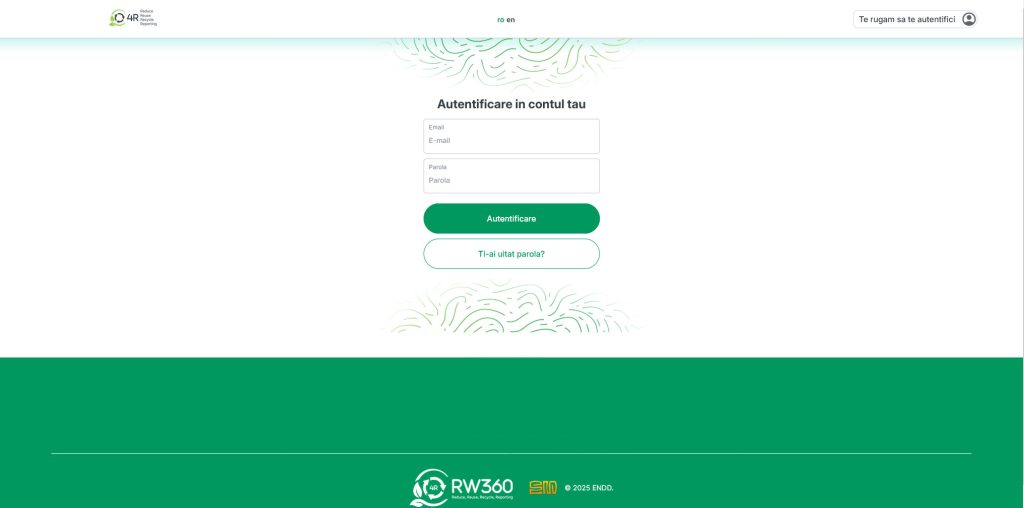
1. Log in to your account
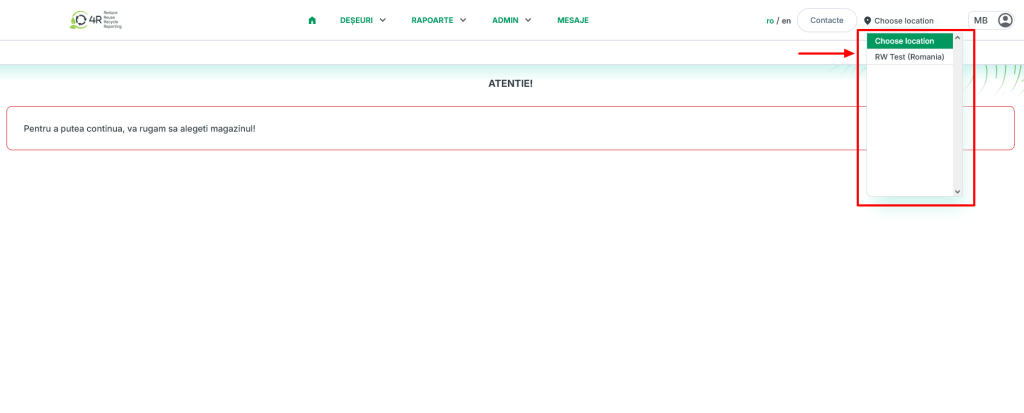
2. Choose the location for which you want to open a dispatch note
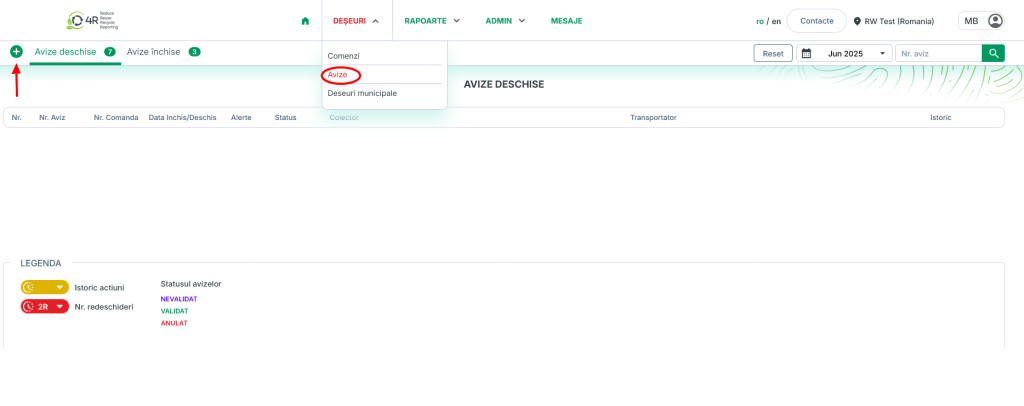
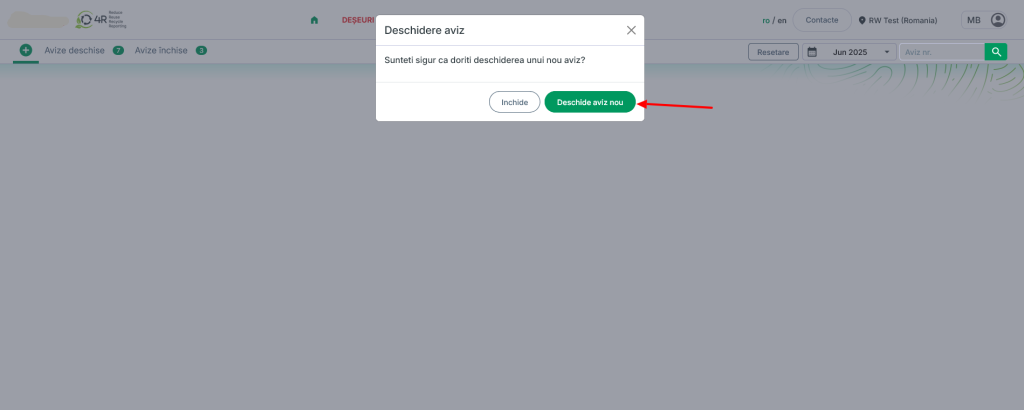
3. Press + to open a new dispatch note
You can only have one dispatch note open at a time; if one is already open, it must be validated first, and only then can a new one be opened
E.g.: Attention!
There is still an unvalidated dispatch note for this store. Please validate this dispatch note first, then you can open a new one!
4. Fill in the main details carefully:
4.1. Carrier
4.2. Transport details
4.3. Shipment details
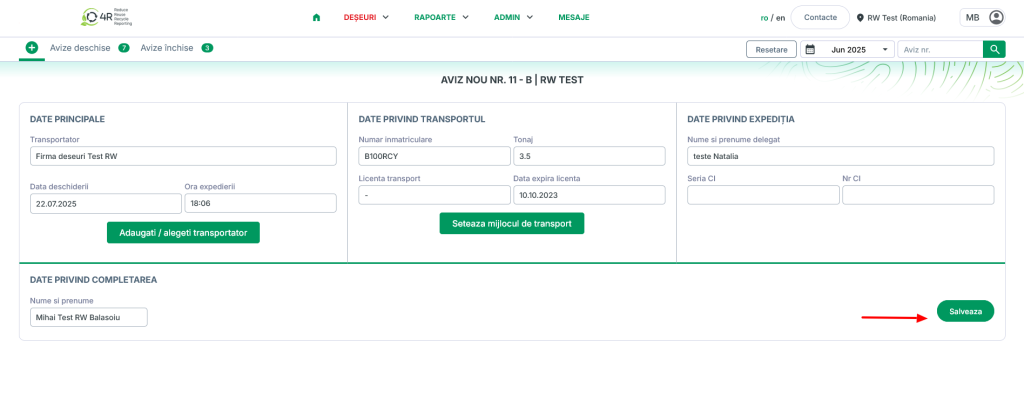
5. In order to save the data, you must open the Waste tab and add the waste type for which the dispatch note is being opened
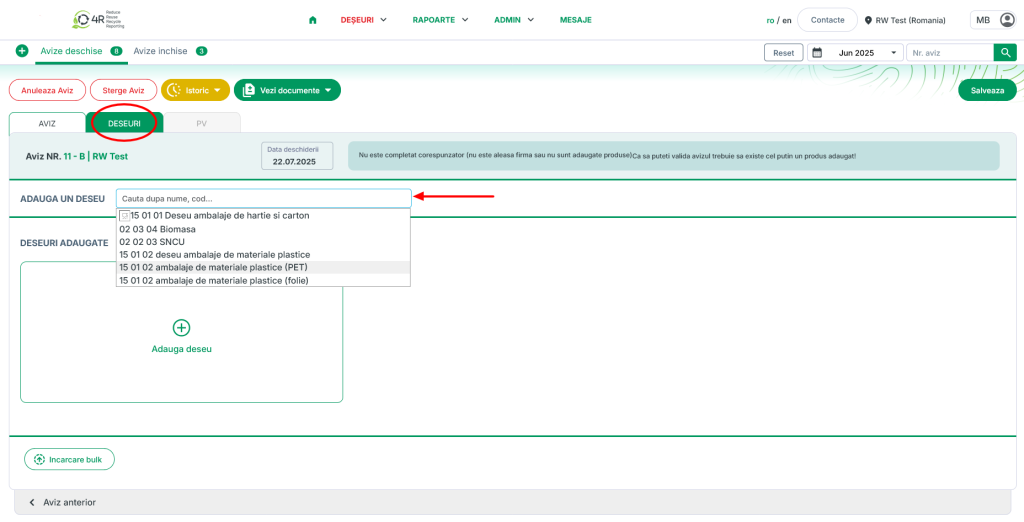
6. After adding the waste type, press the button to the right of the box – Update
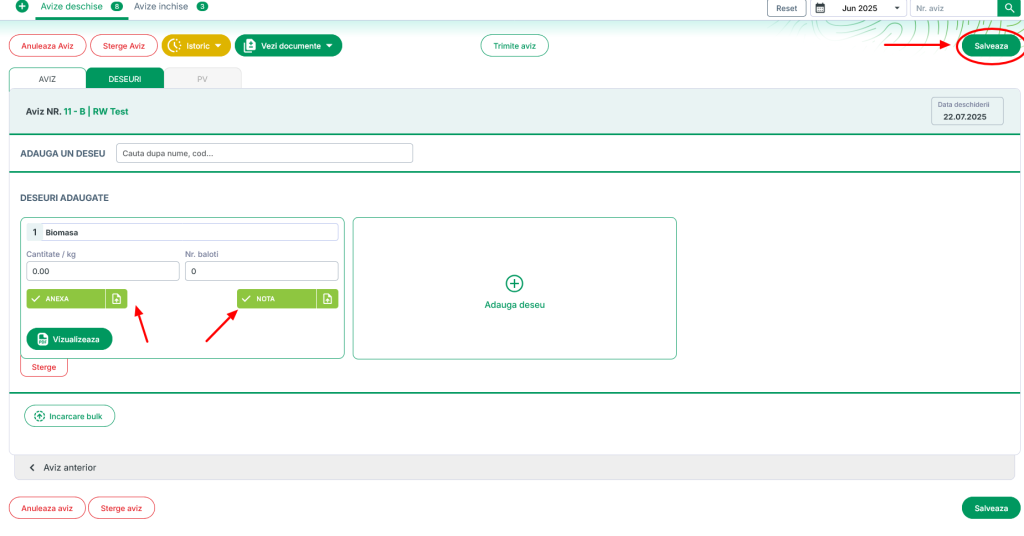
7. The annex must be uploaded; once uploaded, the button turns green
8. We press Update
9. We validate using the Validate button in the centre at the top of the page
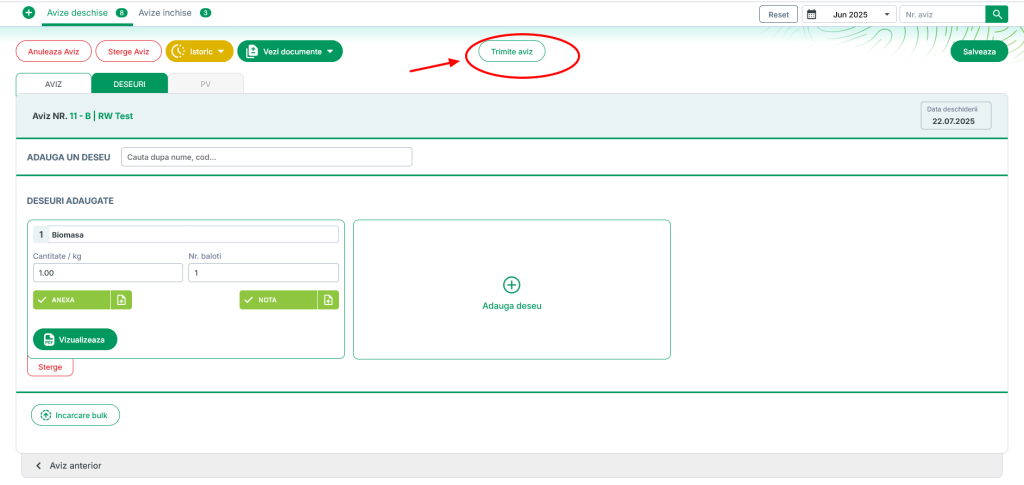
10. The Open dispatch notes page opens, where you can see all the dispatch notes that are open at that moment.